

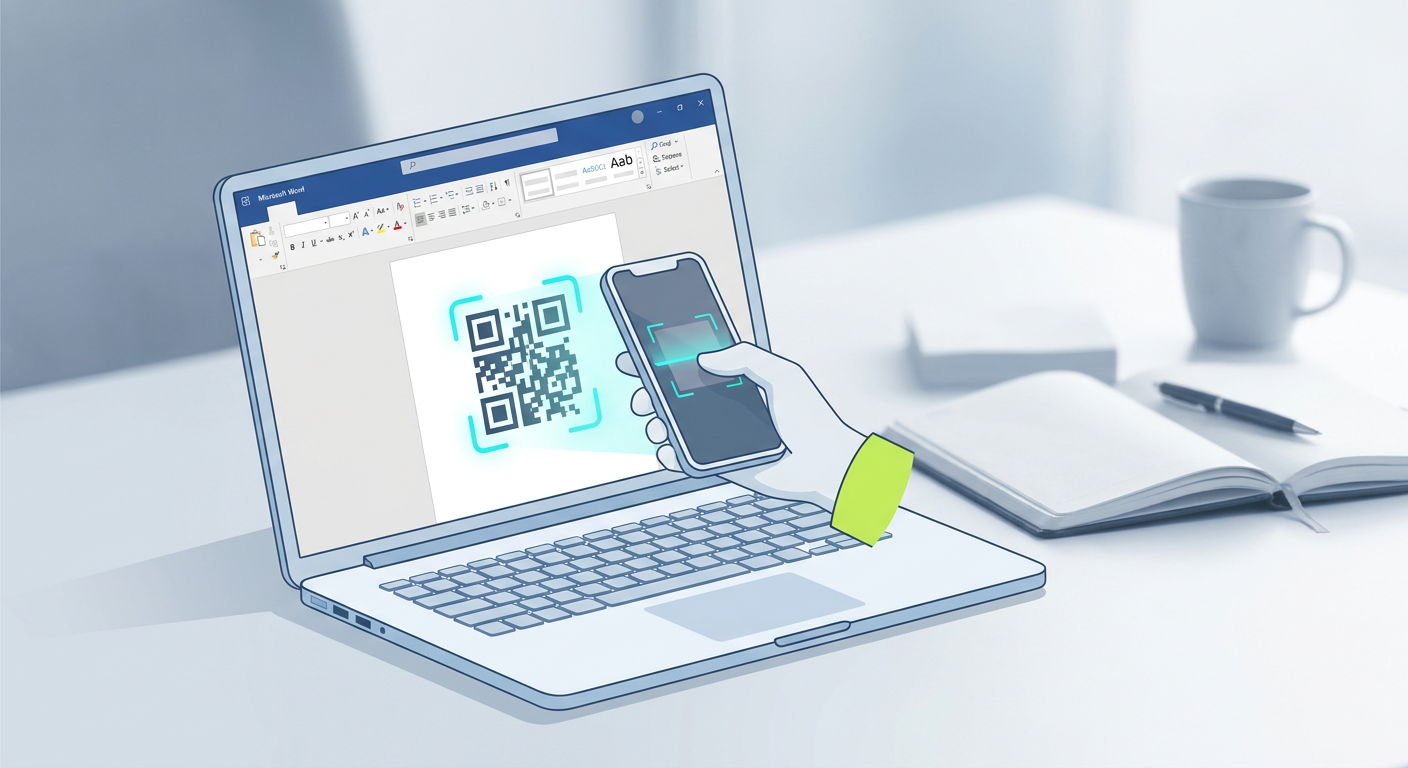
How to Generate a QR Code in Microsoft Word (The Ultimate 2026 Guide)
Static paper isn't enough anymore. Whether you're running a business, managing a classroom, or handling administrative paperwork, you need a way to link physical documents to the digital world. This guide shows you exactly how to use a QR code generator in Microsoft Word to clear up friction, upgrade your printed materials, and route your readers straight to your online resources without a hassle.
To generate a QR code in Microsoft Word, you can either install a free add-in like QR4Office from the Office Store, or use Word's built-in Field Code shortcut by pressing Ctrl+F9 and typing "DISPLAYBARCODE 'your-URL' QR". Both methods let you build static, scannable codes right on your page in seconds.
Key Takeaways
- Native Field Codes: You don't actually need an internet connection for this — Word can build standard QR codes offline using quick keyboard shortcuts.
- Add-In Solutions: Tools like QR4Office give you a simple, visual panel to tweak colors, change sizes, and manage error correction levels on the fly.
- The Static Trap: These built-in codes are entirely static. If your URL breaks or changes down the road, you'll have to redesign and reprint everything from scratch.
- The Dynamic Alternative: If you're running a professional campaign and need to track scans, change destination links, or add branding, you'll want a dedicated dynamic platform instead.
How to Generate QR Codes Using Word Field Codes (The Native Method)

Buried deep inside Microsoft Word is a remarkably useful feature called Field Codes. Think of it as a set of mini-programming scripts for document formatting. It lets you generate various barcodes — including standard QR codes — directly on the page without installing a single thing. If you work in a locked-down corporate environment where IT blocks external downloads, this native method is your best friend.
Step-by-Step Instructions for Native Field Codes
To get started, open your document and click exactly where you want the code to appear. Then, follow these steps:
- Press Ctrl + F9 on Windows (or Cmd + F9 on a Mac). This spawns a pair of shaded curly braces:
{ }. (Don't just type these brackets on your keyboard; it won't work). - Inside those brackets, type this exact syntax, swapping in your actual destination URL:
DISPLAYBARCODE "https://qret.me" QR \q 3. - Press F9 (or right-click the field and hit Update Field). The plain text string will instantly morph into a scannable graphic.
Wondering what that \q 3 switch does? It controls the error correction level. Setting it to 3 maximizes the code's durability, meaning it remains scannable even if the printed paper gets slightly smudged, creased, or stained in the real world.
Formatting and Customizing Native Codes
Need to resize the graphic? Just append the scaling switch \s followed by a number — adding \s 150, for instance, scales the code up by 150%. If you ever need to update the destination URL, don't panic. Just right-click the image, choose Toggle Field Codes, edit the URL inside the quotes, and press F9 to refresh it.
How to Use a QR Code Generator in Word via Add-ins

If memorizing keyboard shortcuts and system syntax isn't your thing, Microsoft's official add-in store offers a much cleaner, visual way to get the job done. The go-to tool here is a lightweight, widely trusted extension called QR4Office.
Installing the QR4Office Add-In
Head up to the main Ribbon menu at the top of your Word window. Select the Insert tab, then click Get Add-ins. Type "QR4Office" into the search bar, hit Enter, and click Add next to the tool. Agree to the terms, and the tool will install instantly.
Configuring Your Custom Scan Target
Once the installation wraps up, a handy sidebar panel will slide open on the right side of your workspace. To create your code:
- Pick your protocol from the dropdown menu (standard options include
http://,https://,mailto:, orsms:). - Paste your final destination link into the box. (If you're using a unified link in bio page, paste that URL here).
- Set your foreground and background colors to match your branding. Just make sure there's enough color contrast, or phones won't be able to read it.
- Slide the sizing scale to set your custom pixel dimensions.
- Choose your Error Correction level — standard flyers usually do great with Medium (15%), while rugged physical documents should probably use High (30%).
- Click Insert. The code lands on your page just like a normal image asset.
Because Word treats this output as a standard graphic file, you can wrap text around it, drag it wherever you need, or copy-paste it across multiple sections of your document.
Static vs. Dynamic: Why Word's Built-In Generator Falls Short

Building a free, quick-and-dirty scan link right inside Word is incredibly convenient, but it comes with a massive catch: the result is a static QR code. With static setups, your raw URL characters are literally hardcoded into the black-and-white grid. The longer and more complex your web address, the denser and more cluttered that visual pattern gets.
Market data from Juniper Research shows scan interactions are growing fast, but user experience plummets when those scans fail. Here is why relying on static links is a gamble for professional projects:
- Broken Links Are Permanent: If your website URL changes, your hosting expires, or you spot a tiny typo after printing, your code is dead. You'll have to open the source file, regenerate a brand-new code, and reprint everything.
- No Tracking Data: You're operating in the dark. Static codes can't track how many people scanned them, where those users are, what devices they used, or when engagement peaked.
- Scanning Errors: Highly complex URLs yield incredibly dense, pixel-heavy patterns. Older or budget smartphones will struggle to read these patterns, especially in low-light environments.
Serious businesses avoid these headaches by running their physical assets through dynamic link management. A unified dynamic platform lets you print a clean, short link once, while giving you the freedom to change the backend destination or review analytics whenever you want.
How to Connect a Word Document QR Code to a Custom Bio Link
If you're handing out printed flyers, resumes, or brochures designed in Word, sending people to a basic, static webpage is a massive missed opportunity. Why limit them to one page? Instead, you can boost engagement by routing scanners to an interactive, fully branded Bio Link Page that groups your portfolio, social profiles, contact info, and digital downloads in one place.

A dynamic setup smoothly bridges the gap between physical paper and your digital life. Instead of pasting a long, rigid corporate URL into Word's generator, you can point readers to a sleek, mobile-friendly landing page. With platforms like Qret.me, you can construct custom mobile spaces complete with text blocks, quick-contact buttons, catalogs, and booking calendars in minutes.
Suddenly, a simple piece of paper becomes a high-converting lead generation tool. Whether you're a real estate agent handing out property flyers or a freelancer sharing a printed resume, sending readers to a dynamic bio page keeps your options open and your audience connected.
Comparison: Microsoft Word Native QR Codes vs. Qret.me Dynamic Ecosystem
Before picking a path for your next project, let's look at how Word's built-in generation features stack up against a modern dynamic management suite:
| Feature Set | Microsoft Word Native Generator | Qret.me Dynamic Ecosystem |
|---|---|---|
| Code Type | Static Only | Dynamic (Fully Editable) |
| Destination Editing | Locked forever once generated or printed | Instant updates anytime via dashboard |
| Scan Analytics | None (You're flying blind) | Real-time geo-tracking, device, and traffic data |
| Visual Customization | Basic color adjustments | Custom logos, frames, shapes, and styles |
| Destination Capacity | Single URL only | Integrates Booking, Catalogs, AI Chatbots |
| File Hosting Storage | None | Up to 15GB secure Identity Vault storage |
How Businesses Bridge Word Docs and Interactive QR Codes
It's incredibly common for businesses to draft client forms, menus, flyers, and policies in Microsoft Word before exporting them to print-ready PDFs. But smart operators don't stop there — they embed dynamic codes to connect those physical pages to active, automated service workflows. It's an easy way to save hours of manual admin work.
Automating Bookings for Service Providers
Take Bella Studio, a boutique beauty salon in Istanbul. Originally, they created Word-designed flyers to promote seasonal packages, asking clients to call the desk to book slots. By replacing their phone number with a dynamic code pointing directly to their online calendar, they automated the entire loop. Clients now scan the flyer, see real-time openings, and book on the spot. That minor change slashed reception calls by 90% and tripled their weekend bookings.
Streamlining Menus and Dietary Inquiries
In Ankara, a restaurant named Casa Verde faced mounting printing bills for their multi-page menus. To cut costs and solve customer allergen questions, they swapped their physical menus for a single dynamic code linking to a digital alternative. They paired this with an interactive AI assistant trained on their kitchen's ingredients. Now, diners scan the table graphic to see vibrant food photos and instantly verify gluten or nut options — wiping out printing costs overnight.
Elevating Your Offline-to-Online Strategy with Qret.me
Word is a fantastic tool for basic layouts, but relying on it for your QR strategies leaves you locked into rigid links and blind to scan data. To grow a modern business, your print materials need a proper digital counterpart. That's where Qret.me changes the game.

Instead of juggling separate bills for link shorteners, booking software, digital catalog builders, and analytics, Qret.me rolls everything into a single, unified, AI-powered system. You can drop high-converting, branded codes straight into your Word documents, while retaining the power to update their destinations on the fly without ever reprinting a page.
The platform comes packed with growth-focused features built for scaling up:
- Dynamic QR Codes: Design fully branded codes featuring your business logo and colors, then track detailed insights (like geographic locations, device types, and peak hours) through the Growth Engine & Analytics panel.
- Seamless Booking Integrations: Let scanners schedule directly onto your calendar without the usual back-and-forth emails. Take a look at how it works on the Online Booking System page.
- AI-Powered Assistants: Train a customized "Nano Agent" chatbot on your files, pricing, or menus to answer customer questions 24/7. Learn more at our AI Assistant dashboard.
- Interactive Menus & Catalogs: Display organized, photo-rich product listings with pricing so your customers can browse smoothly from their phones.
- Secure Identity Vault: Upload, host, and share company PDFs, marketing assets, and images with up to 15GB of secure cloud storage.
Whether you stick with the generous 100% Free Plan — which grants you a customizable bio link, static slugs, dynamic link tracking, and monthly AI chatbot credits — or upgrade to a premium tier for advanced team scheduling and custom domains, Qret.me helps you convert passive print readers into active online customers.
Frequently Asked Questions
How do I generate a QR code in Word for free?
You can do it natively for free. Press Ctrl + F9, type DISPLAYBARCODE "your-link" QR, and press F9 to render the code. If you prefer a visual menu, search for the free QR4Office add-in in the Office Store under your Insert tab.
Why is my Word QR code not scanning?
Low contrast is usually the culprit. If your background and foreground colors are too similar, phone cameras can't read the patterns. Extremely long URLs also compress the visual blocks, making them too dense to scan easily. Try using high contrast or routing through a shorter dynamic link to keep the grid clean.
Can I change the URL of a QR code after printing a Word document?
Not if you generated a standard static code inside Word. The URL is physically printed into the ink pattern. If you think your link might change, use a dynamic platform like Qret.me instead — this allows you to change the target URL in the dashboard without ever needing to reprint.
Is QR4Office safe to use in Microsoft Word?
Yes, QR4Office is a certified, vetted Microsoft Office Add-in. It runs within a secure sandbox environment approved by Microsoft, requiring minimal permissions and keeping your document data safe.
How do I add a logo to a QR code in Word?
Word's native tools and basic add-ins like QR4Office don't support custom logo overlays. Trying to manually paste an image over the code will likely break its scannability. To build high-quality, branded codes with clean logo overlays, you'll want to use the premium options on Qret.me.
What is the difference between static and dynamic QR codes in Word?
Static codes hardcode your website address directly into the image pattern — making them permanent and untrackable. Dynamic codes use a redirect link, which lets you update where the scanner goes at any time while gathering deep, real-time analytics.
How can I track scans from a QR code generated in a Word flyer?
To get analytics, don't link your Word document directly to your raw URL. Instead, build a trackable dynamic link using Qret.me and input that short link into your Word generator. When people scan, the dashboard records their location, device, and scan times before forwarding them to your site.
Conclusion
Knowing how to spin up a quick QR code in Microsoft Word is a highly practical skill for basic office work and updating resumes. But in a competitive business environment, static, rigid links just don't cut it. To truly connect with your audience, capture valuable data, and offer 24/7 automated support, your printed materials need a dynamic partner.
Ready to level up your offline-to-online marketing? Set up your free Qret.me account today — no credit card required — and turn your static print documents into interactive, AI-powered growth engines.