

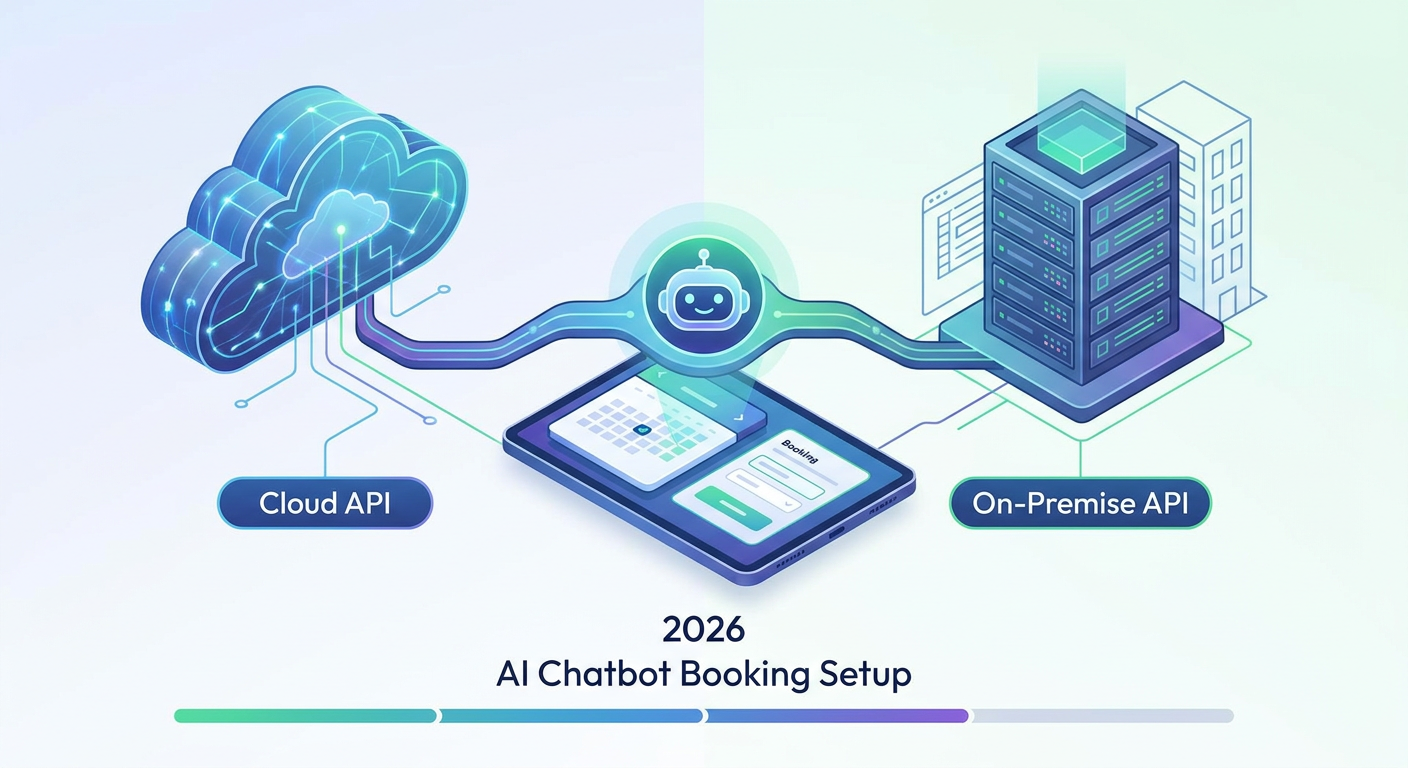
WhatsApp Business API (Cloud API vs. On-Premise API distinction): The Step-by-Step 2026 AI Chatbot Booking Setup Guide
Let's face it: chasing clients for appointments is a massive time sink. If you're running a busy salon, a dental clinic, or a personal training studio, you know the drill. Hours slip away while you're back-and-forth on messages, checking your calendar, and manually typing out booking confirmations. Every minute you spend playing phone tag is time taken away from paying clients—and honestly, it's costing you real money.
A WhatsApp AI chatbot for appointment booking leverages the WhatsApp Business API to connect conversational AI to your scheduling software, allowing clients to query availability, book slots, and receive automated reminders 24/7 without human intervention.
Key Takeaways
- Scale with API: Forget the free mobile app. If you want true, hands-off automation, you need to step up to the enterprise-grade WhatsApp Business API.
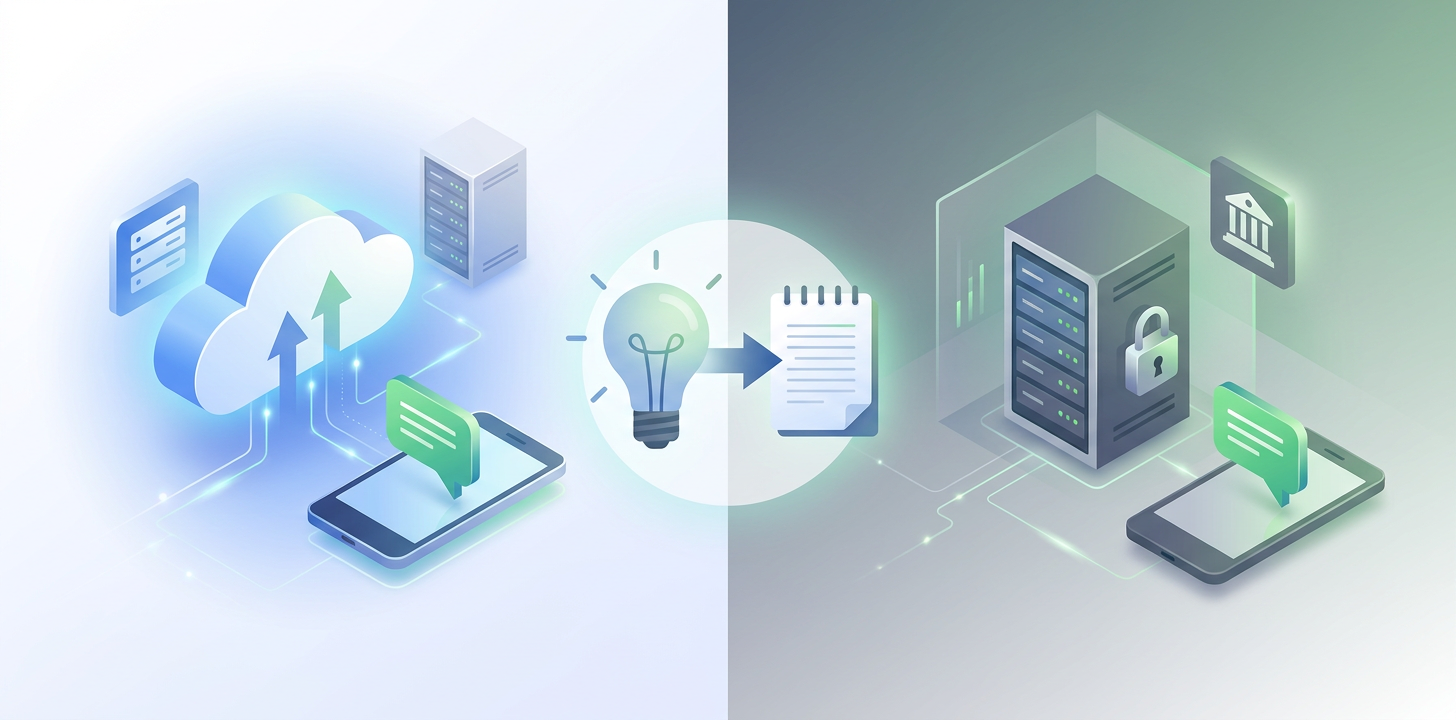
- Cloud API is Superior: Go with Meta's hosted Cloud API. It saves you from annoying hosting fees and keeps message delays to an absolute minimum.
- Automate Compliance: Stay on the right side of privacy laws by using Meta's template approval process and setting up simple, double-opt-in flows.
- Maximize Attendance: Want to slash no-shows by 70% or more? Set up a simple automated reminder sequence at the 24-hour and 1-hour marks.
- Unified Hubs: Platforms like Qret.me bring your booking pages, AI assistants, and QR codes together into one simple, stress-free setup.
Section 1: Understanding the WhatsApp Business API (Cloud API vs. On-Premise API distinction)
If you want to build a booking bot that actually works, you have to ditch the standard, free WhatsApp Business app. It's fine for texting clients manually, but it won't let you hook up external databases, use webhooks, or plug in smart AI. To build something truly automated, you need the enterprise-grade WhatsApp Business API.
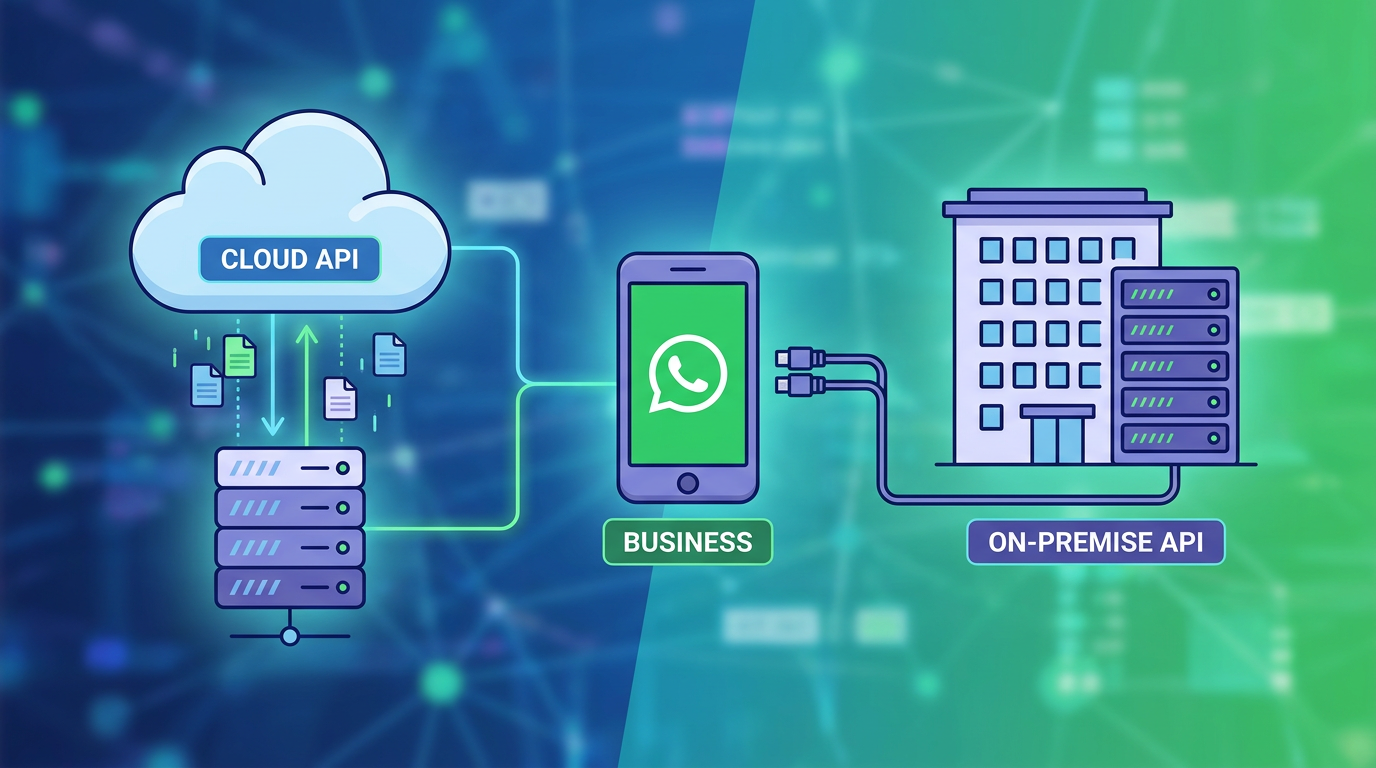
Before you build anything, you need to understand the WhatsApp Business API (Cloud API vs. On-Premise API distinction). This technical choice is important because it dictates how much you'll pay for hosting, how much maintenance you'll have to do, and how easily your system will scale as your business grows.
| Feature / Parameter | Meta Cloud API (Recommended) | On-Premise API (Legacy / Private) |
|---|---|---|
| Hosting Infrastructure | Hosted directly on Meta's secure cloud servers. | Hosted on your own servers or via a BSP (e.g., Twilio). |
| Setup Cost | $0 (Free hosting provided by Meta). | Variable server costs + BSP markup fees. |
| Maintenance & Updates | Automatic updates pushed by Meta instantly. | Manual software updates required by your developers. |
| API Latency | Ultra-low latency globally due to edge network caching. | Dependent entirely on your self-managed server locations. |
| Best For | 95% of small, medium, and high-growth businesses. | Highly regulated industries (finance/health) needing private DBs. |
As you can see, the Cloud API is the obvious winner for nearly everyone. By letting Meta handle the hosting, you get near-perfect uptime without the headache of managing servers. It connects your AI layers straight to Meta's pipes, making your messages load faster while keeping your backend simple.
If you're trying to grow a local service business, you want as little friction as possible. A fragile setup means missed messages—and missed messages mean lost clients. To get more eyes on your booking channels in the first place, check out our quick guide on how to optimize your meta tags to pull in more local search traffic.
Section 2: The Meta Business Manager Verification Process
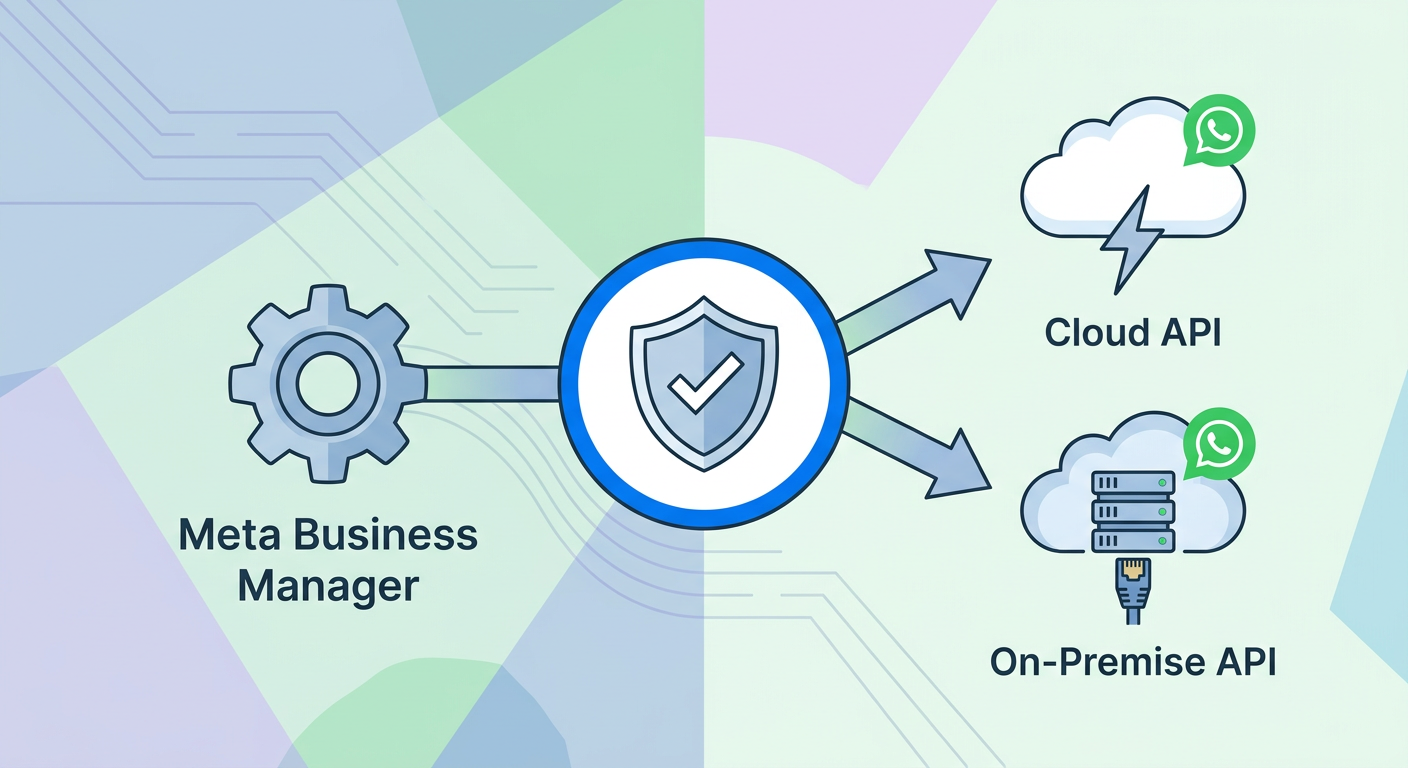
To get your hands on the WhatsApp Business API, you'll need to verify your Meta Business Manager account. Meta does this to weed out spammers and scammers, making sure only legitimate companies get access. Think of it as a digital vetting process—and getting it right from the start saves you a lot of back-and-forth later.
Head over to your Meta Business Suite and set up an account if you haven't already. Inside your settings, click on "Security Center" to start the verification process. You'll need to upload official papers like tax documents, utility bills, or business registrations. Just make sure the business name and address on your documents match your Meta profile exactly—even a tiny typo can cause a rejection.
While Meta reviews your paperwork, go to the "WhatsApp Accounts" tab. Here, you'll create a WhatsApp Business Account (WABA) and link a clean phone number to it. Keep in mind: this number cannot be active on a regular WhatsApp app. If you're currently using it on your phone, you'll need to delete that account first to free it up for the API.
To wrap things up, add a credit card to your Meta billing settings. Meta runs on a conversation-based pricing model, but they start you off with 1,000 free, user-initiated chats every single month. Once you go over that limit, you'll pay a small fee per 24-hour chat session. Rates depend on your customer's country and whether you started the chat (for things like updates or marketing) or they did.
Section 3: Setting Up Your Entry Points (QR Codes and Deep Links)
An incredibly smart booking bot is completely useless if your customers don't know how to reach it. You need to create easy digital doorways that drop people directly into your chat with a single tap.
Your best tool here is the standard wa.me deep-link format. When clicked, these links open the WhatsApp app instantly on a user's phone. If you want to make sure your links are secure and configured properly, take a look at our guide on ensuring URL safety for links. You can even add a pre-filled message to your link like this:
https://wa.me/1234567890?text=I%20want%20to%20book%20an%20appointmentThe beauty of this setup is that when a client clicks the link, their chat opens with that text already typed out. All they have to do is hit send. It removes the hesitation and gets them talking to your bot immediately.
If you run a physical business—like a clinic, gym, or salon—print these deep links as QR codes. Place them on your front desk, front window, or business cards. Walk-ins can scan the code on their way past, chat with your bot, and book a spot for next week without your staff ever having to pick up the phone.
Section 4: Webhook Endpoint Configuration and the Conversational AI (NLU Layer)
The real magic happens behind the scenes. Your setup needs to listen for incoming messages, figure out what the user wants, and respond instantly. This relies on two things: webhooks and Natural Language Understanding (NLU).
A webhook is basically an open ear on your server. Whenever a customer texts your WhatsApp number, Meta packages that message into a JSON payload and sends an HTTP POST request to your webhook URL. Your server's job is to grab that payload, find the sender's phone number and message, and quickly send back a 200 OK response to Meta so it knows the message arrived safe and sound.
Next, your server passes that text over to your NLU engine. Unlike older, clunky keyword bots that get confused if someone makes a typo, NLU looks at the context of the sentence to find the user's intent.
For example, if a client texts: "Can I book a massage for tomorrow afternoon?"
- Intent identified:
book_appointment - Entity 1 (Service): Massage
- Entity 2 (Date): Tomorrow (which your backend calculates as a real date)
- Entity 3 (Timeframe): Afternoon (which you can map to a range like 12:00 PM to 5:00 PM)
If coding this kind of complex logic sounds like a headache, you don't have to build it from scratch. Platforms like Qret.me give you pre-trained, ready-to-go assistants. Qret.me acts like a digital twin for your business, learning from your services, business info, and custom notes to answer questions and manage bookings without any coding on your part.
For the DIY developers out there, testing your webhooks is crucial. You'll want to make sure your payloads are structured correctly before going live. Using simple utilities like our JSON Formatter is a great way to inspect your data and make sure it matches Meta's strict API requirements, saving you from random crashes later on.
Section 5: Designing Conversational Flows, Reminders, and Fallbacks
To make your bot feel helpful instead of frustrating, you need to design smooth chat paths, keep clients updated, and always provide an escape route to a real person.
Configuring WhatsApp Flows
While typing back and forth works, it can get tedious when choosing dates or services. To fix this, Meta introduced WhatsApp Flows. This feature lets you build clean, interactive forms right inside the chat window.
Instead of typing out everything, your clients can open a mini-menu, tap their preferred service, select a date on a calendar, and enter their details in seconds. It keeps the whole booking process inside WhatsApp, keeping conversions high and drop-offs low.
Managing Opt-In Consent and Compliance
Let's talk compliance. Regulations like GDPR are strict about spam. You can't just send messages out of the blue to your clients outside the 24-hour chat window unless they've explicitly agreed to it.
Make sure your bot asks for permission early on. Use a simple button or list selection that says: "Would you like to receive automated appointment reminders and scheduling updates via WhatsApp?". Once they agree, log that choice with a timestamp in your database so you're fully covered.
Setting Up the 24-Hour Reminder Sequence
No-shows are a killer for service margins. To stop them, set up an automated reminder sequence—say, one message 24 hours before the slot and another one an hour before. These proactive notifications must use Meta-approved templates, often called **Highly Structured Messages (HSM)**.
Hello {{1}}, this is a reminder for your {{2}} booking tomorrow, {{3}}, at {{4}}.
To confirm your attendance, please reply "CONFIRM".
If you need to reschedule, reply "RESCHEDULE".
When the client taps a response, your system processes it. You can instantly update your calendar, send a quick thank-you note, or offer alternative times if they need to reschedule.
Implementing Fallback-to-Human Logic
Bots are smart, but they aren't human. If a client asks a highly specific question or gets stuck, your bot needs to hand off the conversation gracefully before the customer gets annoyed.
If your AI's confidence score drops below 70% twice in a row, have the bot pause automatically. It should ping your team on Slack, Discord, or email, and send a polite note to the client: "I've paused our chatbot and connected you with a member of our team. Someone will reply to you shortly." This keeps your service feeling personal and high-touch.
Section 6: Integrating Your Chatbot with Calendars and Schedulers
Your booking bot is only as good as its connection to your live calendar. You need it to talk directly to your booking software—whether that's Google Calendar, Outlook, or Calendly.
When a client asks for a slot, your system should ping your calendar API to see what's open, filtering out lunch breaks and booked slots. The bot then shows those free times to the user. Once they pick a spot, the system updates your calendar instantly and shoots over an invite.
If you don't want to deal with APIs and webhooks, you can use Qret.me's built-in online booking system. It connects your custom AI assistant directly to an interactive booking page, handling calendar syncs, reminders, and client details right out of the box.
For those building a custom solution, you'll need backend tasks to run on a schedule to trigger reminders and sync your databases. Utilizing a tool like our Cron Expression Builder makes it easy to set up reliable background tasks, ensuring your system runs smoothly and sends out reminders right on time.
Section 7: Frequently Asked Questions (FAQ)
How much does it cost to run a WhatsApp Business API chatbot?
Meta charges per conversation within a 24-hour window, rather than per message. Your first 1,000 customer-initiated chats each month are completely free. Beyond that, the cost depends on the category (utility, marketing, or service) and the user's country. If you use Meta's Cloud API directly, hosting is free, though you'll pay for any external booking platforms or AI engines you connect.
Can I use my existing WhatsApp Business mobile app number for the API?
Yes, you can. However, you'll need to delete your existing WhatsApp Business App account first. A single phone number can only be linked to one system at a time. Once you switch to the API, you'll manage your chats through your custom dashboard or connected software instead of the mobile app.
How long does the Meta Business Manager verification process take?
It usually takes anywhere from 2 to 7 business days. You can speed things up by making sure the company name, address, and website details on your official documents match the information in your Meta Business Suite exactly.
What is a WhatsApp HSM message template, and why do I need it?
An HSM (Highly Structured Message) is a pre-approved template you use to send outbound messages outside the active 24-hour window. Meta reviews these to make sure businesses aren't spamming users with unsolicited marketing, keeping the platform clean for everyone.
Is the conversational data shared through the WhatsApp API secure?
Yes, all messages sent over the WhatsApp Business API are secured with end-to-end encryption. If you're in a highly regulated field like healthcare or legal services, just make sure your database and AI integrations are also compliant with standard security measures like GDPR or HIPAA.
What happens if the AI chatbot fails to understand a client's booking request?
Your system should have a built-in safety net. If the AI doesn't understand a request after two tries, it should step aside, notify your staff, and let the customer know that a real person is taking over the conversation.
How do I prevent clients from booking double slots on my calendar?
Your bot should check your live calendar database in real time before presenting options. When a user picks a slot, temporarily hold that time in your database for a few minutes while they confirm, preventing anyone else from grabbing the same spot.
Conclusion
Setting up an automated WhatsApp booking chatbot is one of the smartest upgrades you can make for your business. It saves you hours of manual admin work, slashes your no-show rates, and lets your customers book whenever they want—even at 2:00 AM. By choosing the right API, setting up interactive flows, and syncing your calendar, you turn WhatsApp into an automated assistant that works around the clock.
Of course, if you don't feel like setting up servers, writing code, or training NLU models from scratch, you don't have to. Platforms like Qret.me make it incredibly easy. Qret.me serves as a digital twin for your business, combining customizable bio-link pages, dynamic QR codes, analytics, and a booking system into one simple dashboard. Its AI helper is ready to answer customer FAQs, share your catalogs, and book appointments automatically.
Ready to automate your schedule and free up your time? Sign up for Qret.me for free today and launch your own smart booking assistant in minutes—no credit card required.