

How to Add an AI Chat Widget to Your Link in Bio Page (2026 Guide)
Let's face it: static link-in-bio pages are where traffic goes to die. The second someone lands on your page, you have mere seconds to grab their attention before they bounce. But what if you could turn that dry list of links into a living, breathing 24/7 digital twin? By dropping a simple embed code / iframe snippet into your setup, you can install an autonomous AI chat widget that works while you sleep—handling product FAQs, warming up inbound leads, and booking discovery calls on autopilot.
To add an AI chat widget to your link in bio page, just grab the embed code / iframe snippet from your conversational AI platform, paste it into a custom HTML block on builders like Linktree, Beacons, or Stan.store, and tweak the container dimensions so it looks flawless on mobile screens.
Key Takeaways
- Silent, static links lead to high bounce rates—interactive AI assistants actually keep people talking.
- A simple embed code / iframe snippet is your ticket to running fully responsive chat interfaces on almost any modern bio-link builder.
- Mobile screen real estate is precious, so keep an eye on your z-index settings so your chat widget doesn't block important links.
- If you want to skip the custom HTML headaches altogether, platforms like Qret.me offer built-in, native AI widgets right out of the box.
Step 1: Generate the Embed Code / Iframe Snippet
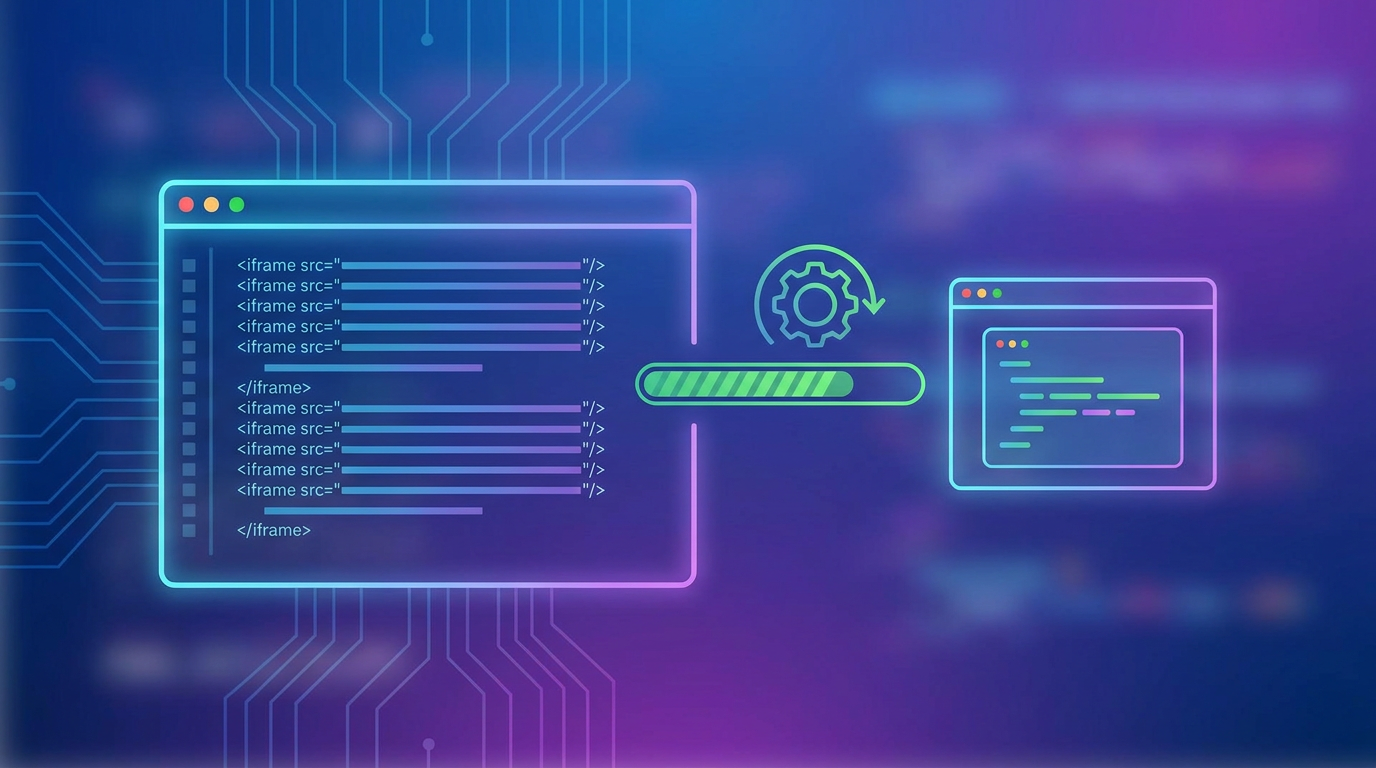
First things first: you need to grab the raw code from whatever AI platform you are using. Think of this code snippet as the digital bridge connecting your smart AI brain to your user's screen.
Head over to your conversational AI dashboard, find the publishing or deployment settings, and look for "Web Integration." Here is a quick tip: choose the "Inline Frame" or "Iframe" option instead of a floating bubble. Why? Because you want the chat to sit neatly inside the vertical column flow of your social bio page rather than floating randomly over your content.
Once you find it, copy the secure HTML script. It'll usually look something like this:
<iframe src="https://your-ai-platform.link/widget/chat-id" width="100%" height="500px" style="border:none;"></iframe>Want to give your visitors options? You can also run a WhatsApp Business API chat trigger right alongside your embedded widget. It's a great backup plan for users who prefer messaging you on their favorite chat app instead of talking to a web bot.
Step 2: Add the Embed Code to a Linktree Custom HTML Block
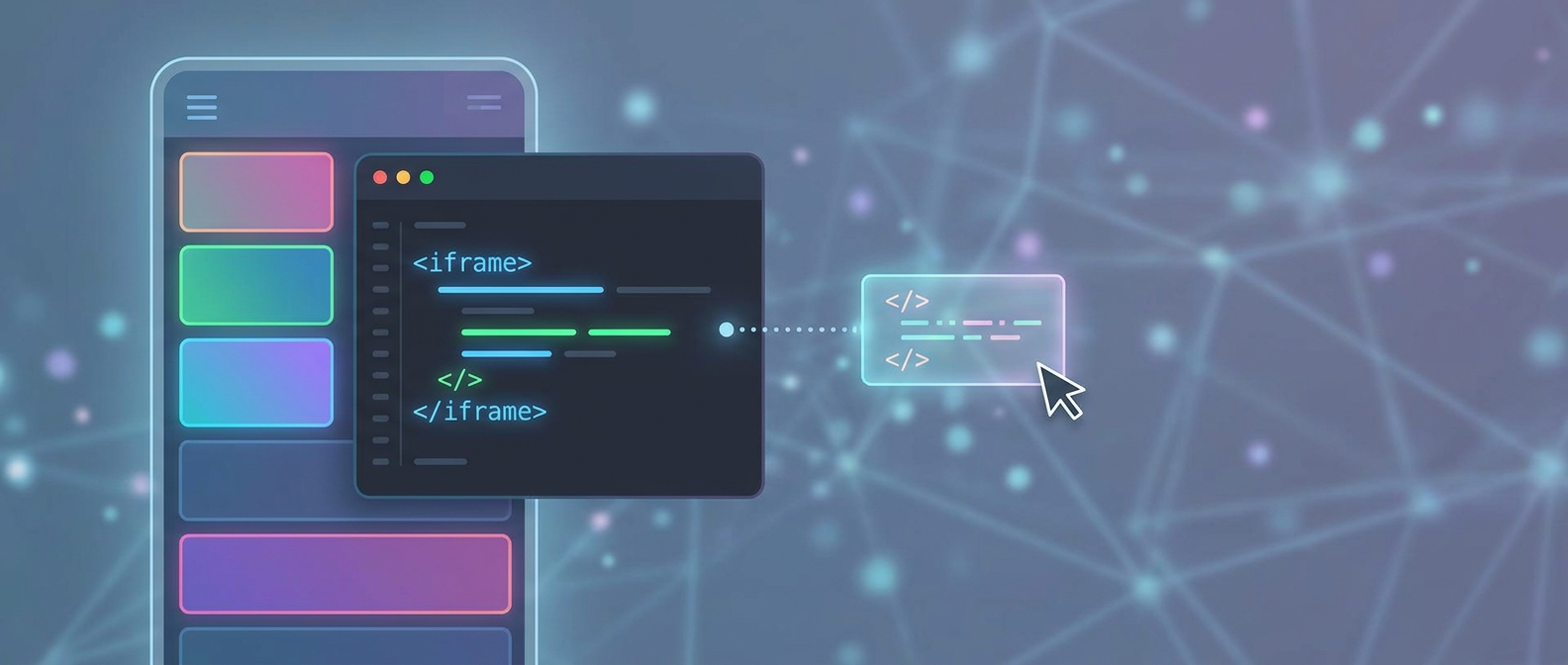
Now, if you are on Linktree's free plan, you are mostly stuck with basic link buttons. To get custom HTML blocks, you'll need one of their paid tiers. If you don't feel like upgrading, it might be worth checking out some modern Linktree alternatives that let you embed rich media without the paywall.
But if you are ready to go on Linktree, here is how you do it:
- Log in to your Linktree Admin dashboard and click on the "Links" tab.
- Hit "Add Link," but don't just paste a URL. Look for "Explore Shortcuts" or the "Custom HTML Block" option.
- Paste your secure embed code / iframe snippet directly into the HTML box.
- Tweak the dimensions. Try setting the widget height to exactly 450px or 500px—this sweet spot usually prevents annoying "double-scrolling" issues on mobile phones.
- Flip the "Active" toggle, and just like that, your new virtual assistant is live.
When you turn your bio link from a static list into an interactive hub, magic happens. You'll likely see a massive jump in click-through rates because conversations are simply much more engaging than plain, boring buttons.
Step 3: Embed on Beacons.ai and Stan.store
If you run your business on Beacons.ai or Stan.store, you are in luck. Adding external widgets is incredibly straightforward here, though the setups differ slightly depending on the tool you use.
Deploying in Beacons.ai
Inside your Beacons editor, click "Add Block" and find the "Embed" or "HTML" option in the design menu. Paste your snippet right in. Beacons is generally great at handling responsive designs automatically, but do yourself a favor and double-check that the container width is set to 100% so it doesn't get awkwardly cropped on narrow phone screens.
Deploying in Stan.store
Stan.store is built for selling digital products, making it a perfect spot for an AI helper. To get it live, add an "HTML/JS" block to your store layout and paste your snippet. This puts an automated assistant right next to your checkout buttons, letting you handle buyer objections and answer questions at the exact moment someone is deciding to buy.
If you'd rather not deal with stitching together three different platforms, you can always look into optimizing your landing page architecture using modern platforms that handle both storefronts and AI assistants natively.
Mobile Viewport Rendering: Optimizing the Mobile UX
Keep in mind that over 90% of your link-in-bio visitors are clicking through from apps like Instagram, TikTok, or YouTube Shorts on their phones. That means your mobile user experience isn't just important—it's everything.
When setting this up, you can go with an inline card (embedded directly in your link list) or a floating overlay bubble. For mobile screens, we almost always recommend an inline card. Floating bubbles have a nasty habit of covering up your navigation buttons or overlapping other links, which quickly annoys visitors.
If you do go the floating route, keep an eye on your CSS z-index. You want the chat container high enough to sit on top of background elements, but not so high that it blocks native browser menus. Here is a solid, clean CSS snippet to keep things tidy:
.chat-container { z-index: 9999; bottom: 20px; right: 20px; position: fixed; }Pro tip: open Chrome Developer Tools and test the mobile layout. You want to make sure that when a user taps the chat box and their phone keyboard pops up, it doesn't push your entire page layout off-screen.
Lead Capture Forms and Booking Handoffs Inside Chat
The real beauty of an AI-driven assistant is how easily it turns casual scrollers into actual customers. Think about it: a standard link list asks the visitor to do all the work—scrolling, clicking around, searching. An AI assistant flips the script by guiding them to exactly what they need through a friendly, natural chat.
| Feature Attribute | Static Link Directory | Embedded AI Assistant Page |
|---|---|---|
| User Engagement Type | Passive scrolling, lots of quick exits | Active conversation, guided discovery |
| Lead Qualification | Requires them to fill out a boring form | Qualifies prospects naturally during the chat |
| Conversion Rates | Usually hovers around a 2% - 5% CTR | Sees an average 15% - 30% chat response rate |
| Booking Friction | Sends them away to external booking tools | Books appointments directly inside the chat window |
As your AI chats with a prospect, it can show a neat lead capture form right inside the conversation flow. If they fit your ideal customer profile, the AI can immediately pull up your calendar to lock in a meeting—all without the user ever leaving your bio link. For a step-by-step on how to orchestrate this, check out our guide on how to set up automated workflows with AI assistants.
Native AI Assistant vs. Embedded Widgets: A Head-to-Head Comparison
Yes, copy-pasting an embed code / iframe snippet gets the job done on older, classic link directories. But it's not perfect. It can slow down your page load times, add extra scripts, and give you limited design control. Sometimes, a unified approach is just better.
This is where Qret.me shines. It isn't just another basic list of buttons; it's built from the ground up as a complete, AI-powered digital presence engine—a true digital twin for your personal brand or business.
Instead of paying for three different subscriptions—one for your links, one for your scheduler, and another for your chatbot—Qret brings it all together. Qret's native AI assistant automatically learns your bio details, services, and business rules to assist visitors around the clock. Plus, it features a built-in Online Booking System and a sleek Digital Menu builder, so you have everything you need in one clean dashboard.
Technical Optimization: UTM Tracking, GDPR, and Fallbacks
To make sure your setup runs smoothly and professionally, keep these quick tips in mind:
- UTM Parameter Passthrough: Make sure your widget is set up to capture incoming UTM parameters. This way, your CRM will know exactly whether a new lead found you through Instagram, TikTok, or a recent email.
- GDPR and Privacy Compliance: If you get visitors from the UK or EU, make sure your widget plays nice with General Data Protection Regulation standards by showing a quick cookie consent banner before firing tracking scripts.
- No-JS Fallbacks: Some users browse with JavaScript disabled. Having a static fallback button—like a direct link to a WhatsApp Business API chat trigger—means you'll never miss a connection.
Ditching the messy web of plugins and upgrading to a smart, unified page is the easiest way to capture more leads and free up your time. You can try Qret.me for free today—no credit card needed—and get your own AI digital twin up and running in minutes.
Frequently Asked Questions
Can I add an AI chat widget to Linktree for free?
Unfortunately, no. Linktree reserves custom HTML blocks for their paid tiers, so you'll need a premium plan to use an embed code / iframe snippet. If you want native AI features without paying extra, platforms like Qret.me include them as standard.
Will embedding a chat widget slow down my page load speed?
It can. Loading external tools through iframes often adds extra load time. To keep your page snappy and avoid hurting your mobile user experience, try using asynchronous loading scripts or use a lighter, unified platform built for speed.
Do I need coding skills to install an iframe snippet?
Not at all. You don't need to write a single line of code. It's a simple, two-minute copy-and-paste job: you just copy the code from your AI tool and paste it into your bio-link builder's HTML block.